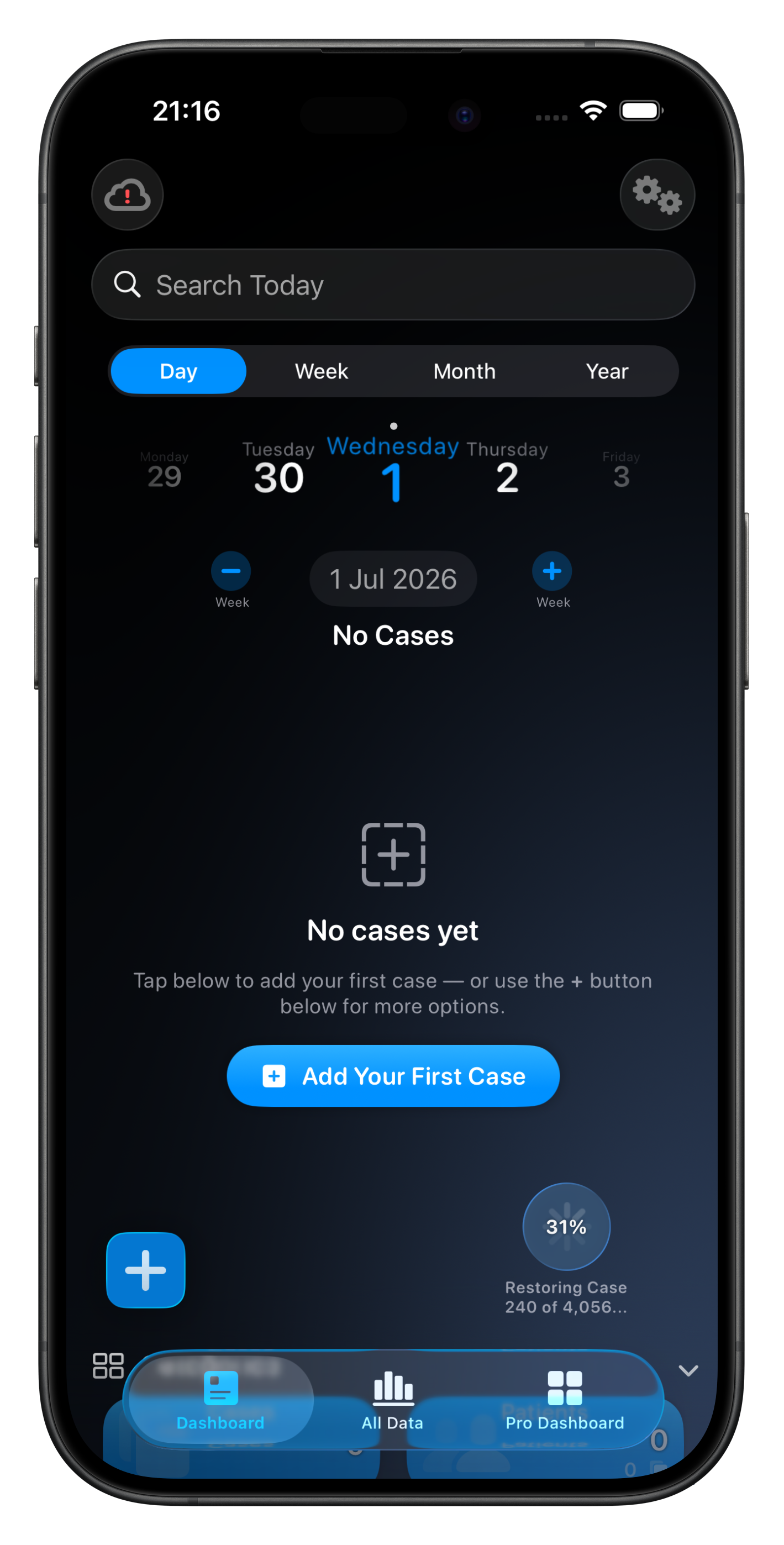
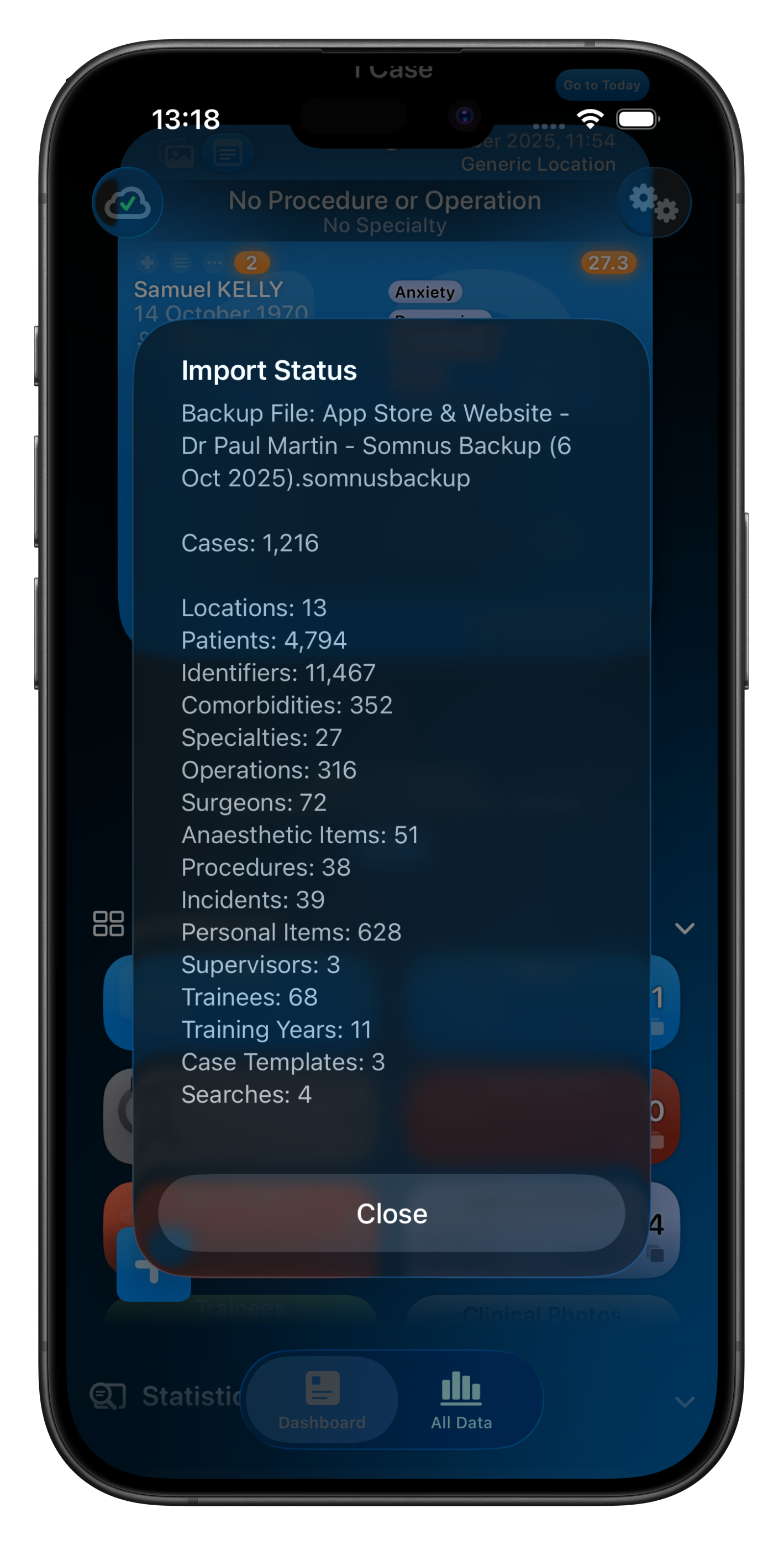
Creating a Backup
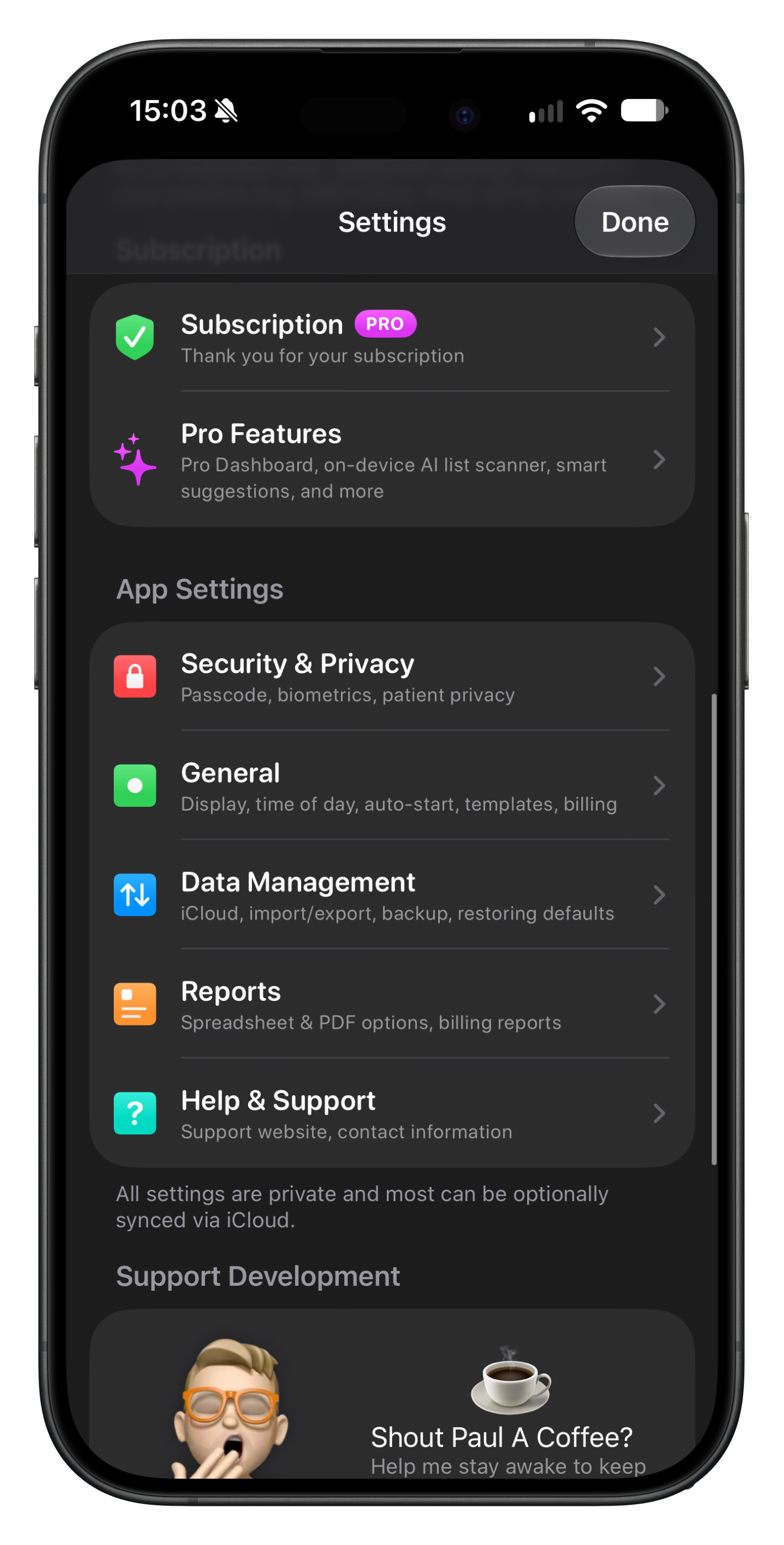
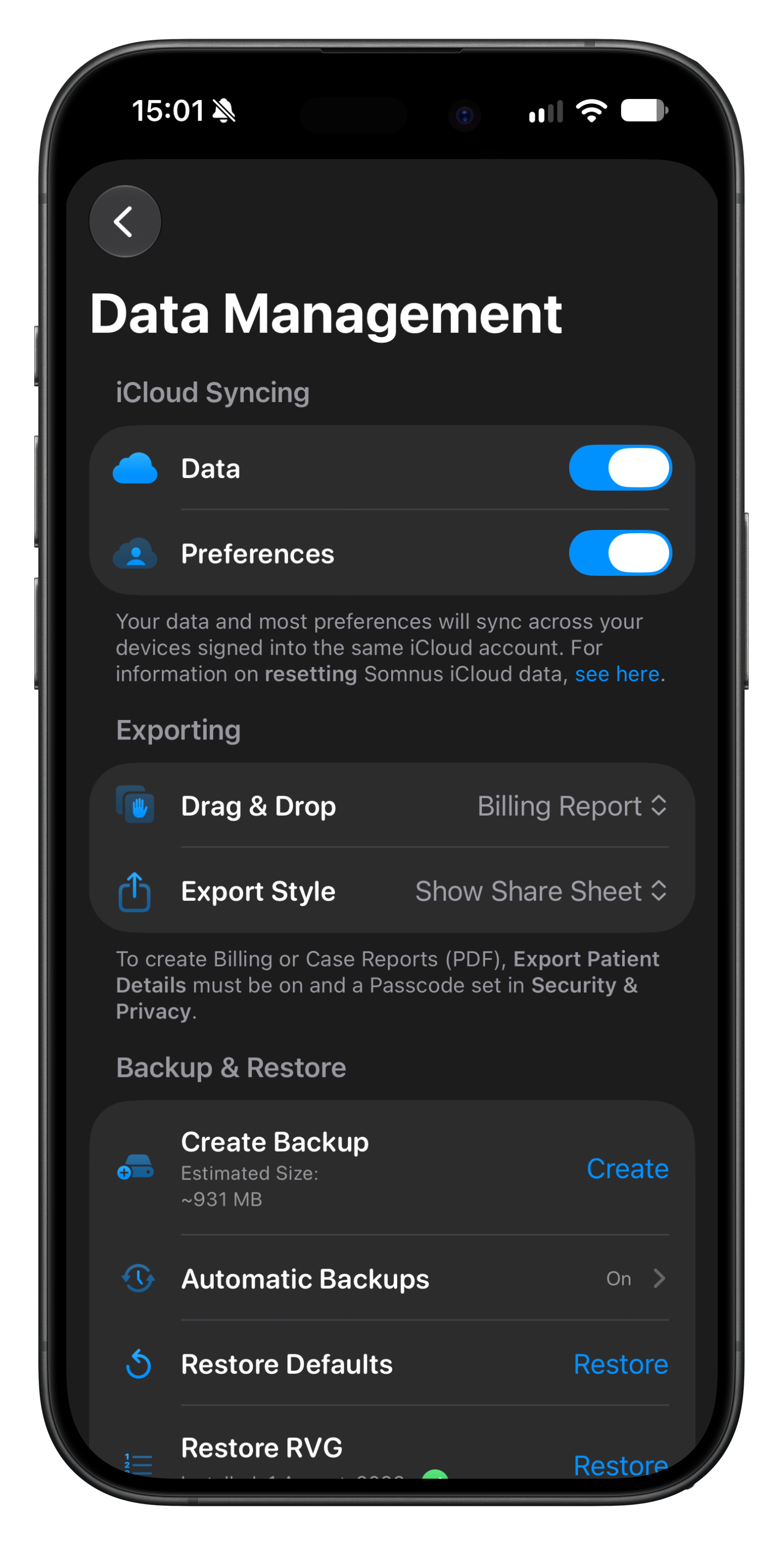
In Settings select Data Management and then scroll down to Create Backup. An estimated file size is shown.
This will gather all data & most preferences and create a file with the extension .somnusbackup. Save this file somewhere safe.
If you have any problems with creating or restoring a backup, please contact me.
* While the Somnus Backup File contains no human readable text and the data is all encoded, it is not encrypted so please consider where you save these files. In contrast, your database stored in iCloud is encrypted. You can store them as a password protected ZIP file after creation if you wish.

What if Backup File Creation Fails?
If creating a backup file fails, there is still a way to back up your case data:
On the Dashboard, select the Year range and then export cases as Somnus Data files by year using the Summary Card menu.
Repeat this process until all Cases are accounted for
Note, this will not export any item that is not attached to your Cases (eg. Searches, Template, Patients without Cases).
If your goal is to completely reset Somnus from a backup of your data, follow these additional steps:
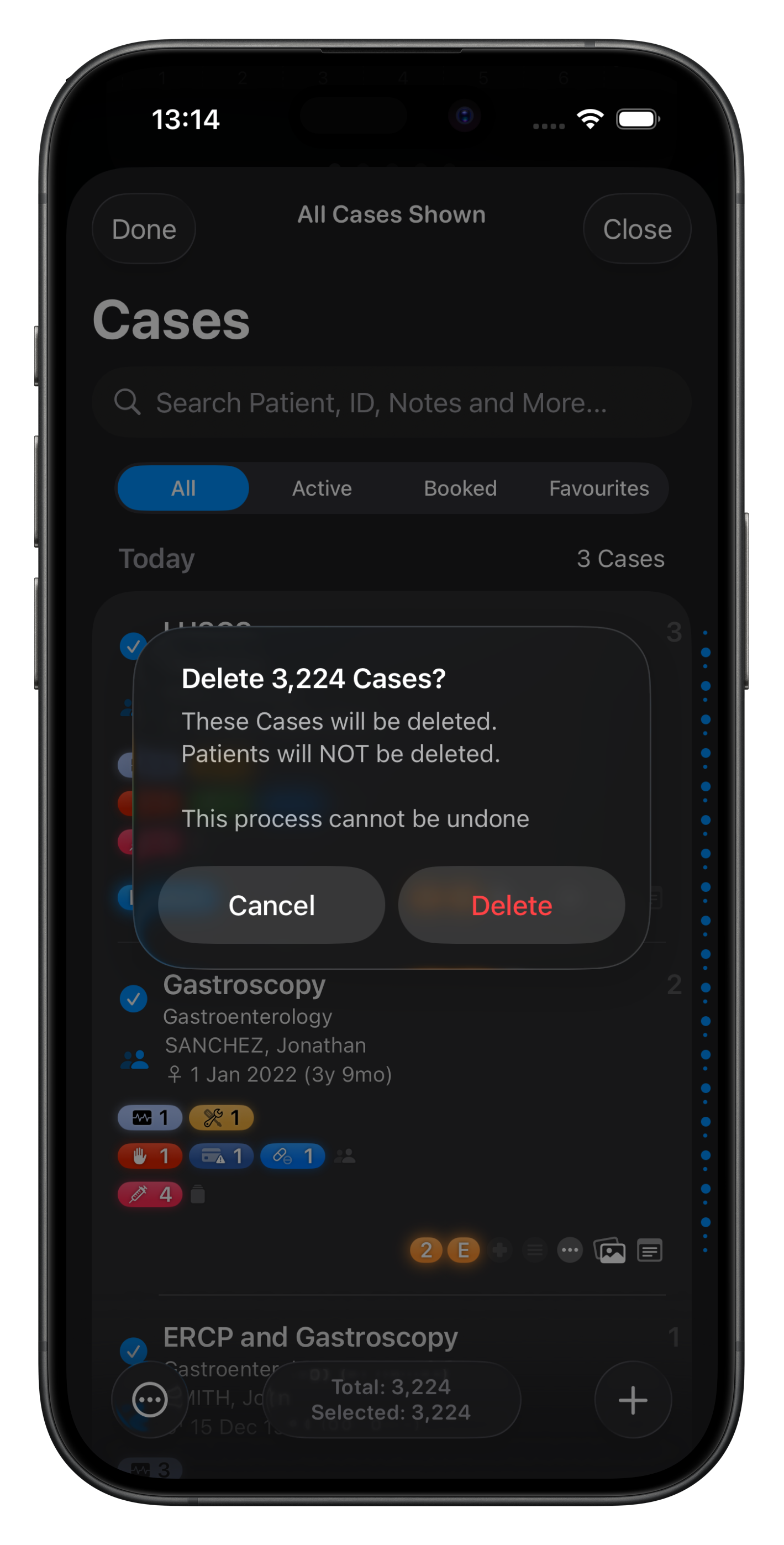
After successfully exporting each year of Cases, view that list of Cases, select Edit -> Select All and Delete
At the end you will be left will all data except Cases and any Clinical Photos attached to them
Now re-attempt to create the Somnus Backup file which might work if there was a corrupted file preventing the initial creation. If it still fails, contact me.
To restore this segmented backup data, follow these steps, but at Step 4 do the following:
Restore the backup file first
Import each year of Somnus Data files
Syncing should resume and you should have all your data back to where it was before you deleted everything.
* If you sync your database with iCloud to another device, try to create a backup on another device instead. iPads have more RAM and it’s less likely to fail, and it almost never fails to create a backup file on macOS.

Restoring a Backup
When restoring a backup file, all data is erased before the restore to ensure database integrity - restoring a second backup, or a concurrent restore, won't make it 'more complete'.
Somnus will simply retain the data from the LAST restore and remove anything else.
If syncing to iCloud and several restores have been attempted in a row, it might result in significant syncing 'hysteresis' as all the changes have to be synced & verified - this results in weird looking data.
NOTE: If you are using iCloud Data Syncing and want to restore a backup, please follow these steps for best results.