
Case Cards
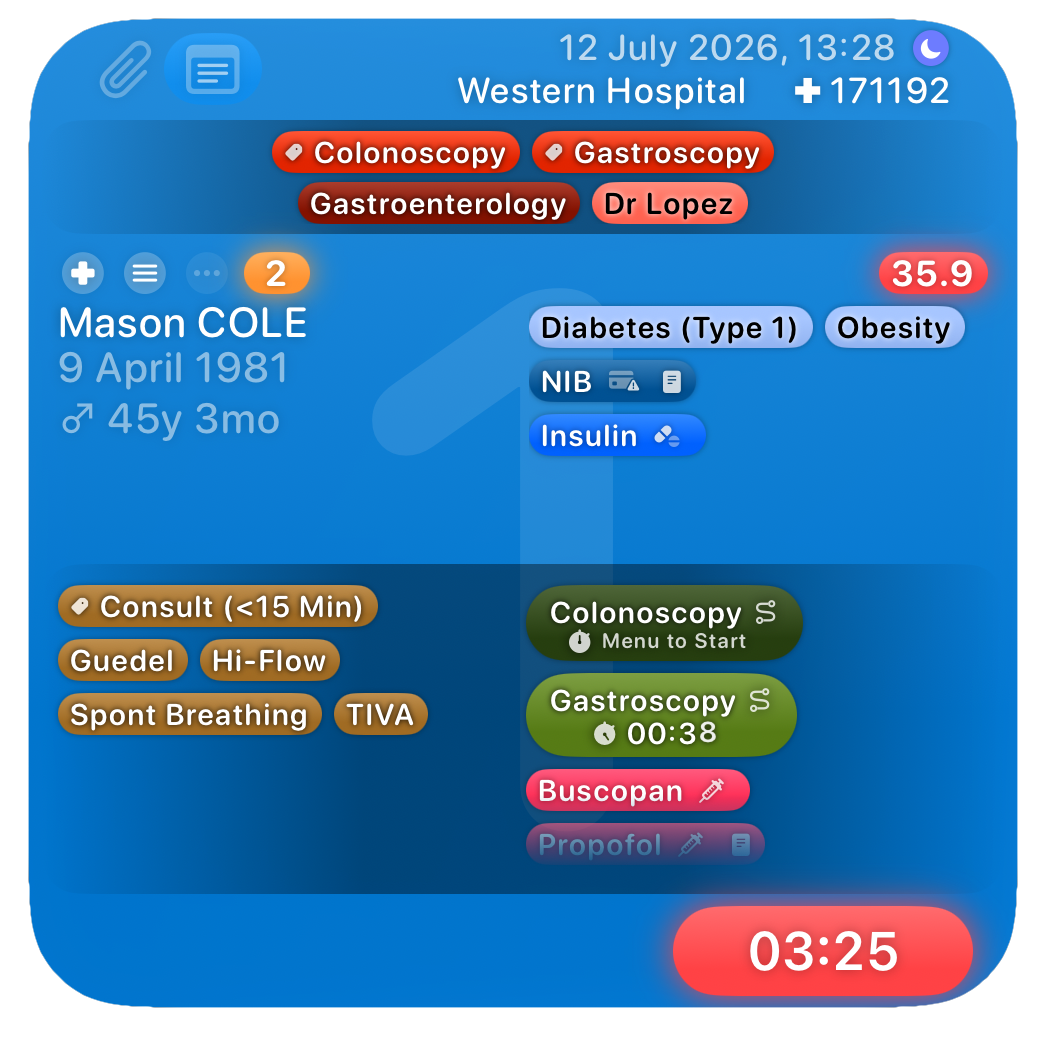
Case cards show most case data at a glance, divided into five sections:
-
At the top are icons & buttons for the presence of clinical photos & documents and case notes as well as time and location information.
The Case Notes button allows for rapid Event Logging, appending them to the Case Notes. Long press/menu for more.
The patient's identifier (if present) will be shown with a ✚ along with the location.
-
This is the operation, specialty & surgeon section.
If you have no operation set, but you do have a procedure set, it will show the procedure instead.
Multiple specialities, operations, procedures & surgeons will be shown, grouped by Speciality
-
The left side shows patient details with icons representing (from left to right):
Identifier label present
Patient notes
The patient has any other cases
ASA status (colour coded)
If any of the patient's cases have an incident, an additional warning icon will be displayed. If you are using a generic patient only the ASA will be shown.
The right side shows any comorbidities and personal list items for the patient as well the BMI (or weight if no height).
-
All the case details including timers, anaesthetic items, procedures, incidents and any personal list items you may have added to the case (in this case I add the drugs I use for auditing purposes).
Personal List items linked to Patients are displayed in the Patient section.
-
The duration label and a space with supervision details (if applicable) are shown here.
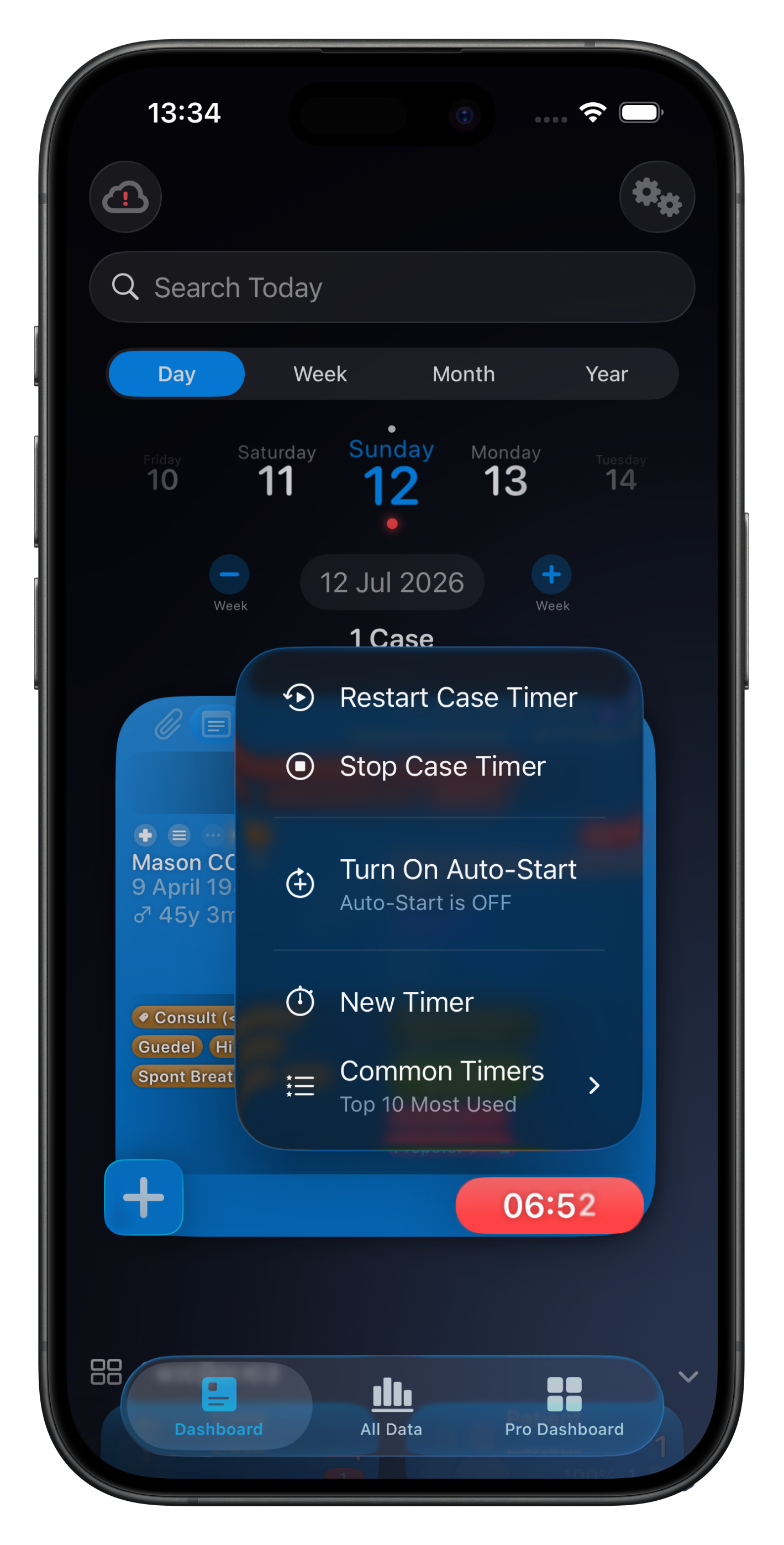
The timer button can start/stop the case timer as well as allow you to access custom Timers via the context menu.
Interactive
Case card functionality has been totally overhauled in version 10, with the ability to edit most Case information directly without ever needing to open the case.
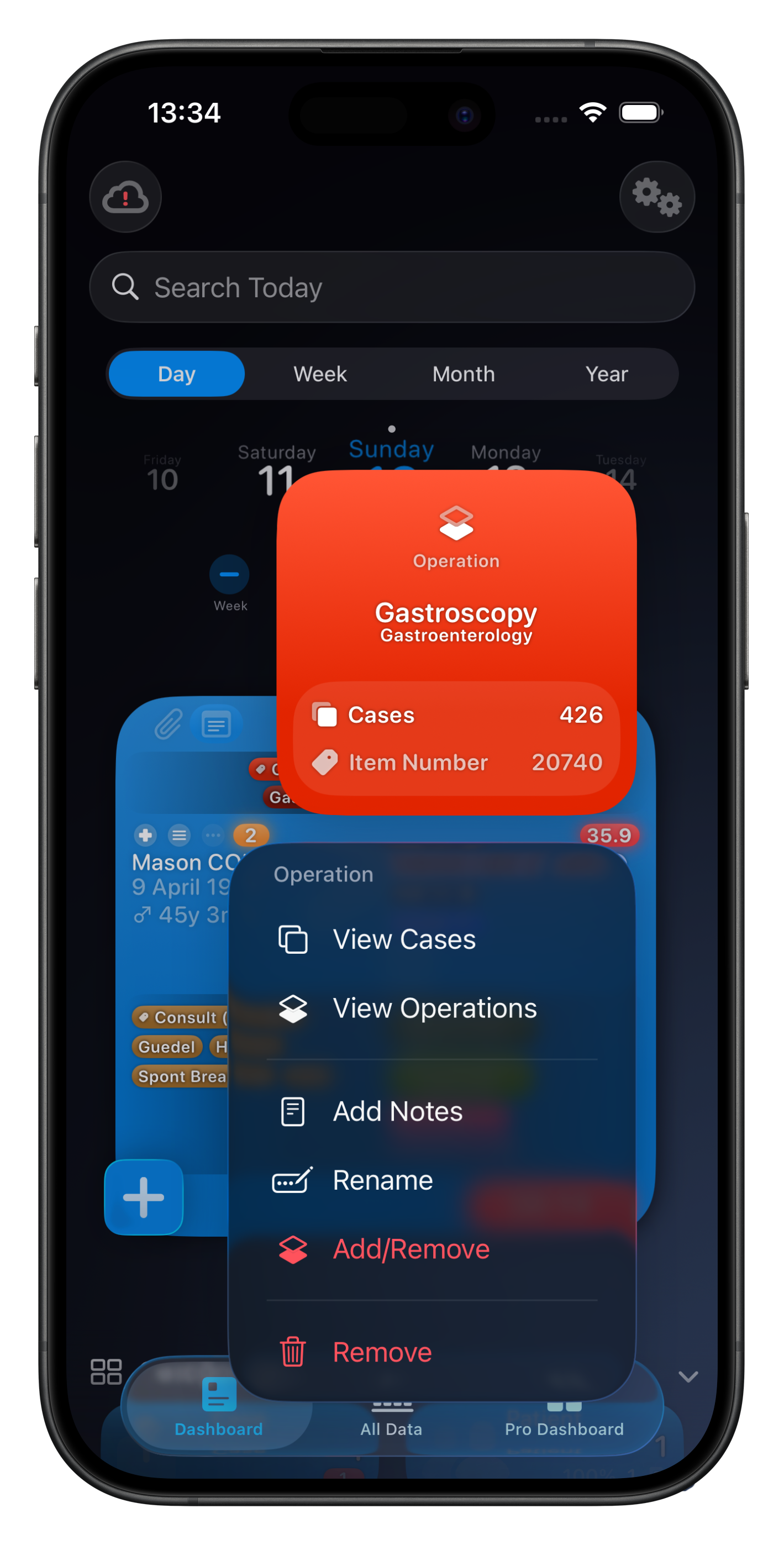
This is achieved with context menus - long pressing on sections/items (or right-clicking on macOS).
On iOS devices most menus now include advanced preview images which presents more data at a glance.
To open the Case for more advanced editing, tap on anywhere on the case card.
Case Context Menus
To view a context menu relevant to the Patient, tap & hold on the Patient section (or right click on Mac). This will bring up a summary card for the Patient as well as a menu of common functions, including the ability quickly view/edit their notes.
This is particularly useful if you need to quickly see their biometric data or notes at a glance.
Similarly, long pressing on a blank area of the Case Card itself (rather than individual items) will present a context menu with many Case-related functions, including:
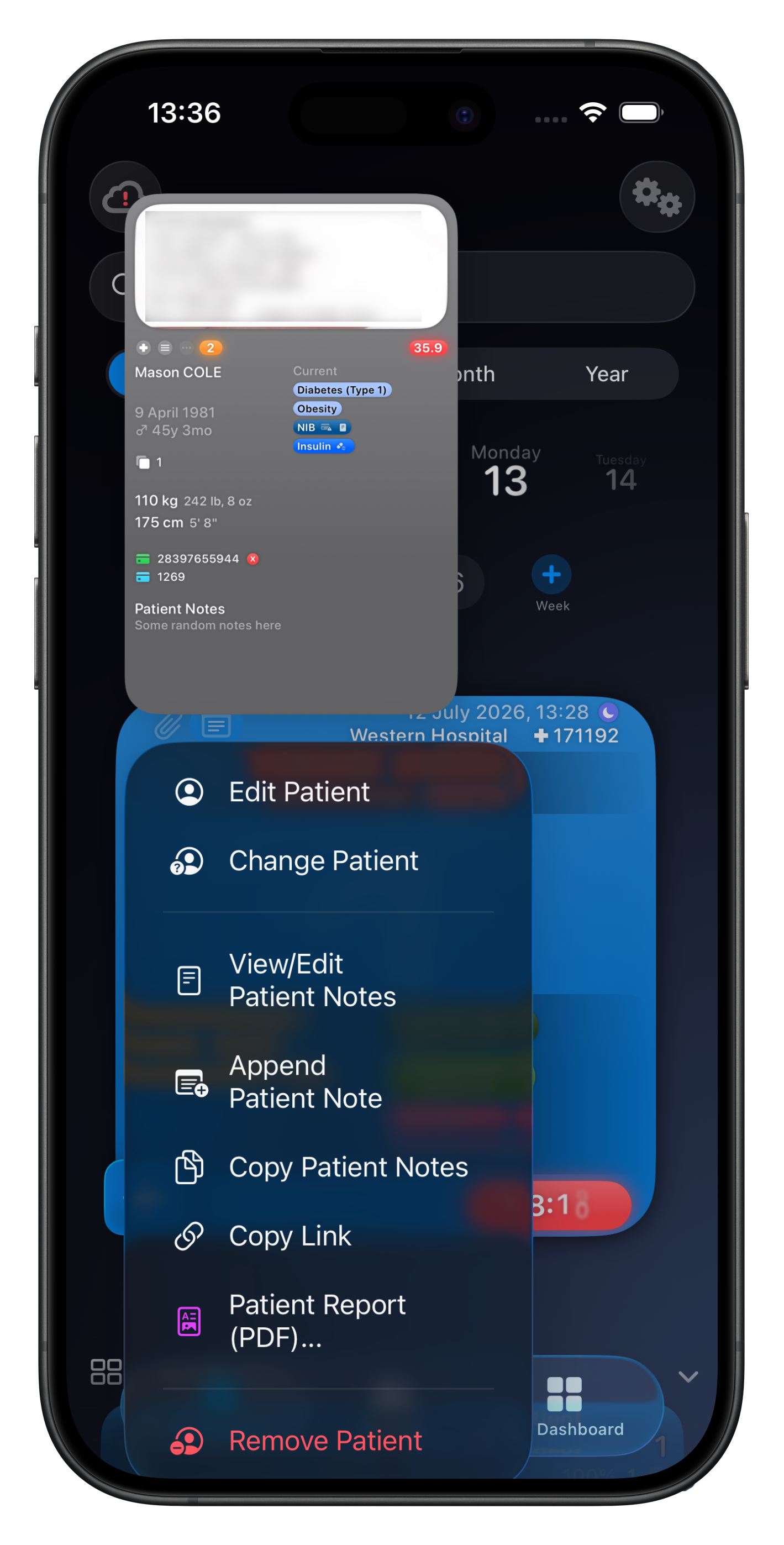
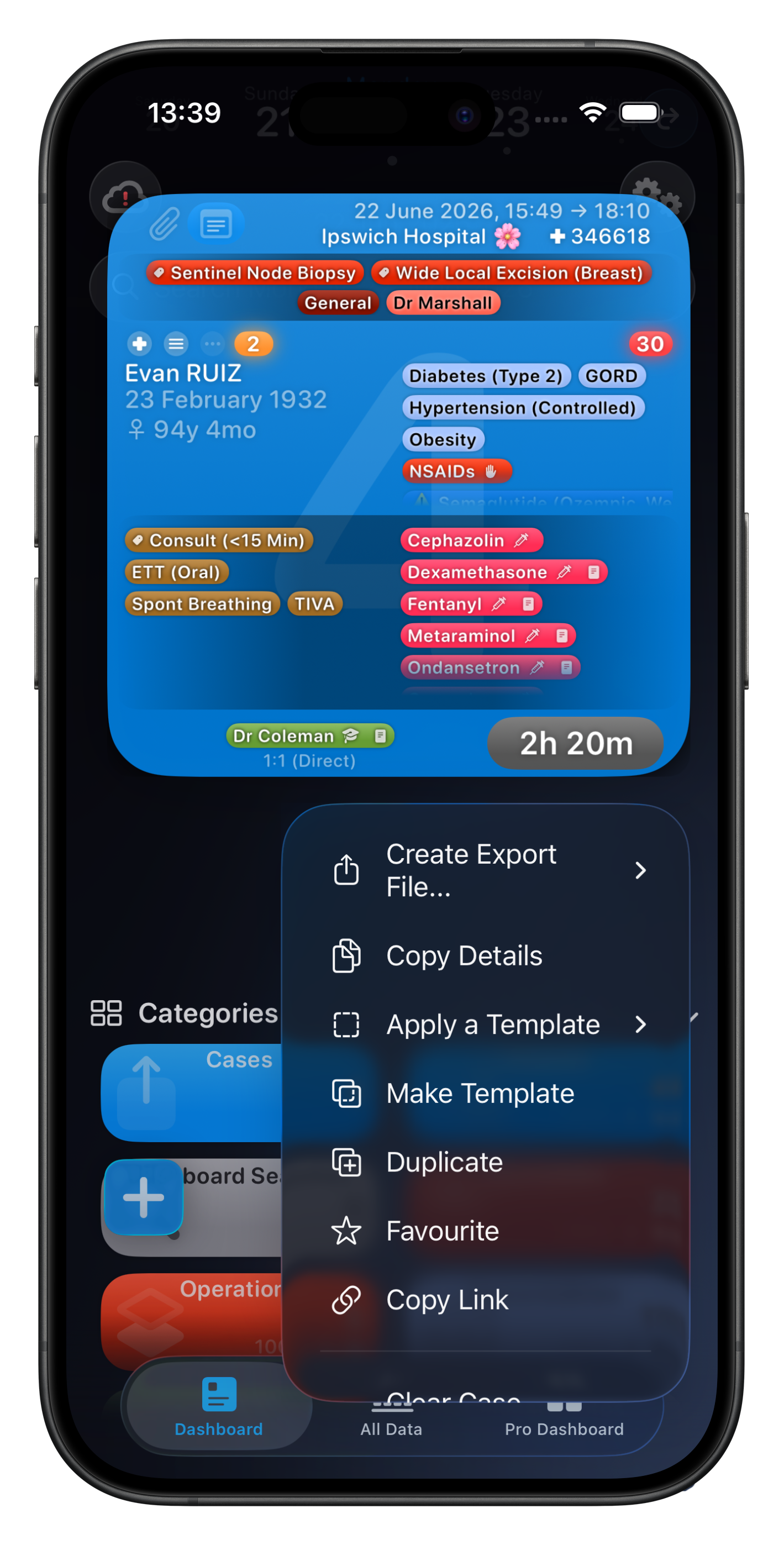
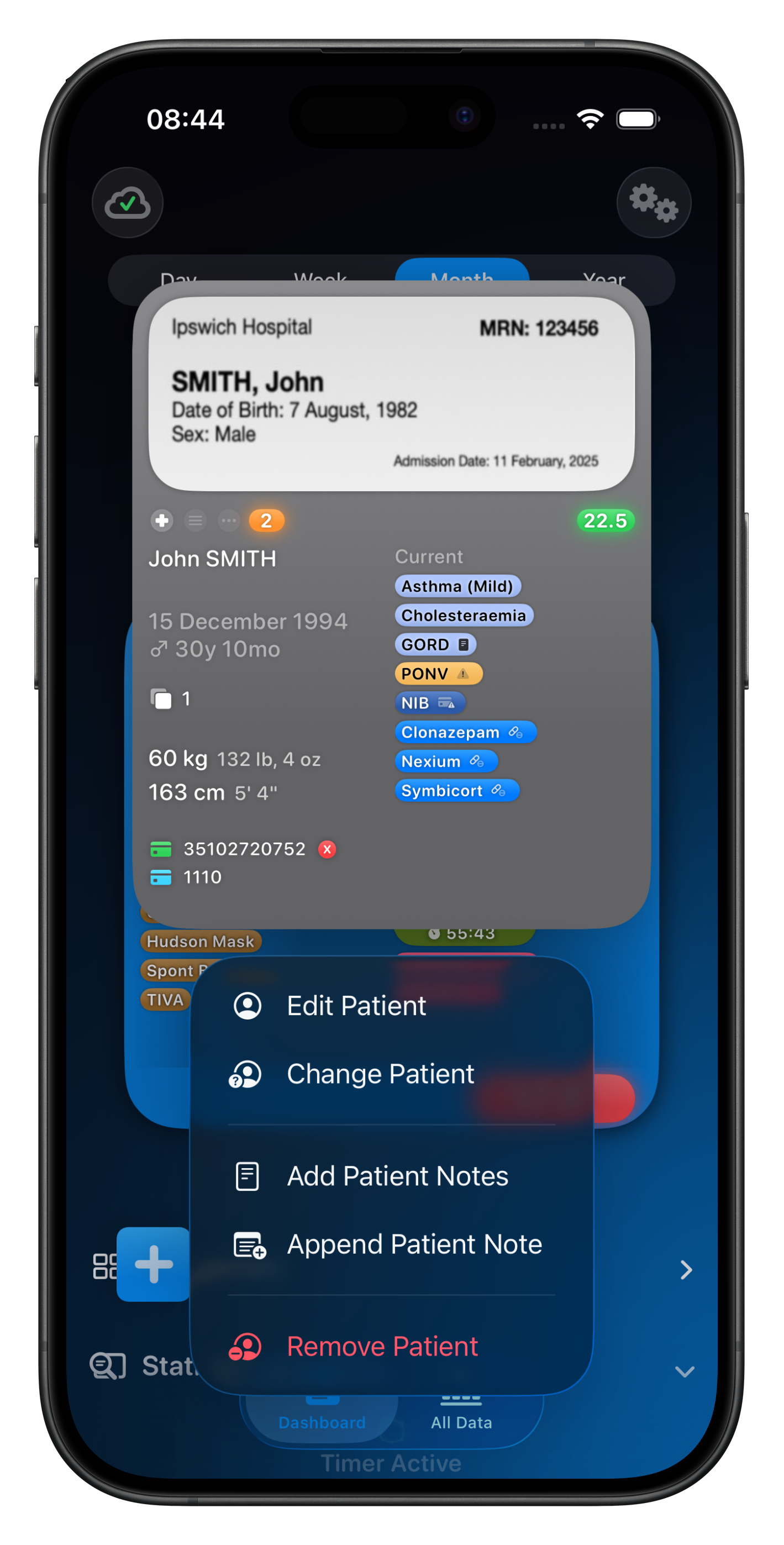
The Patient section will show a card with almost all patient details, including biometrics & label. No need to open the Case to see this information.
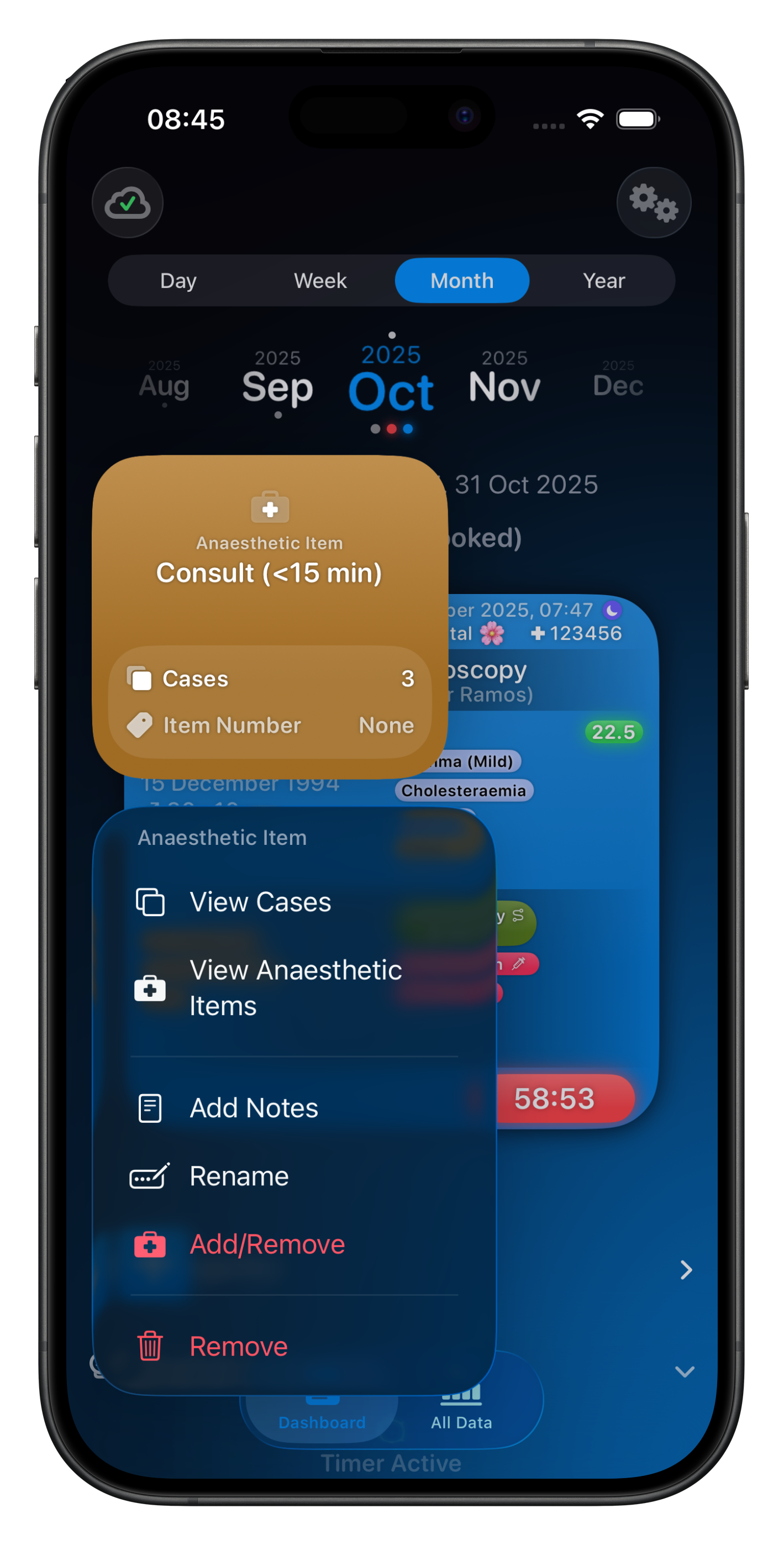
You can add/remove items to the Case quickly. If adding/modifying items that are linked to a Patient, and they have other Cases, you'll be asked if you wish to update them too.
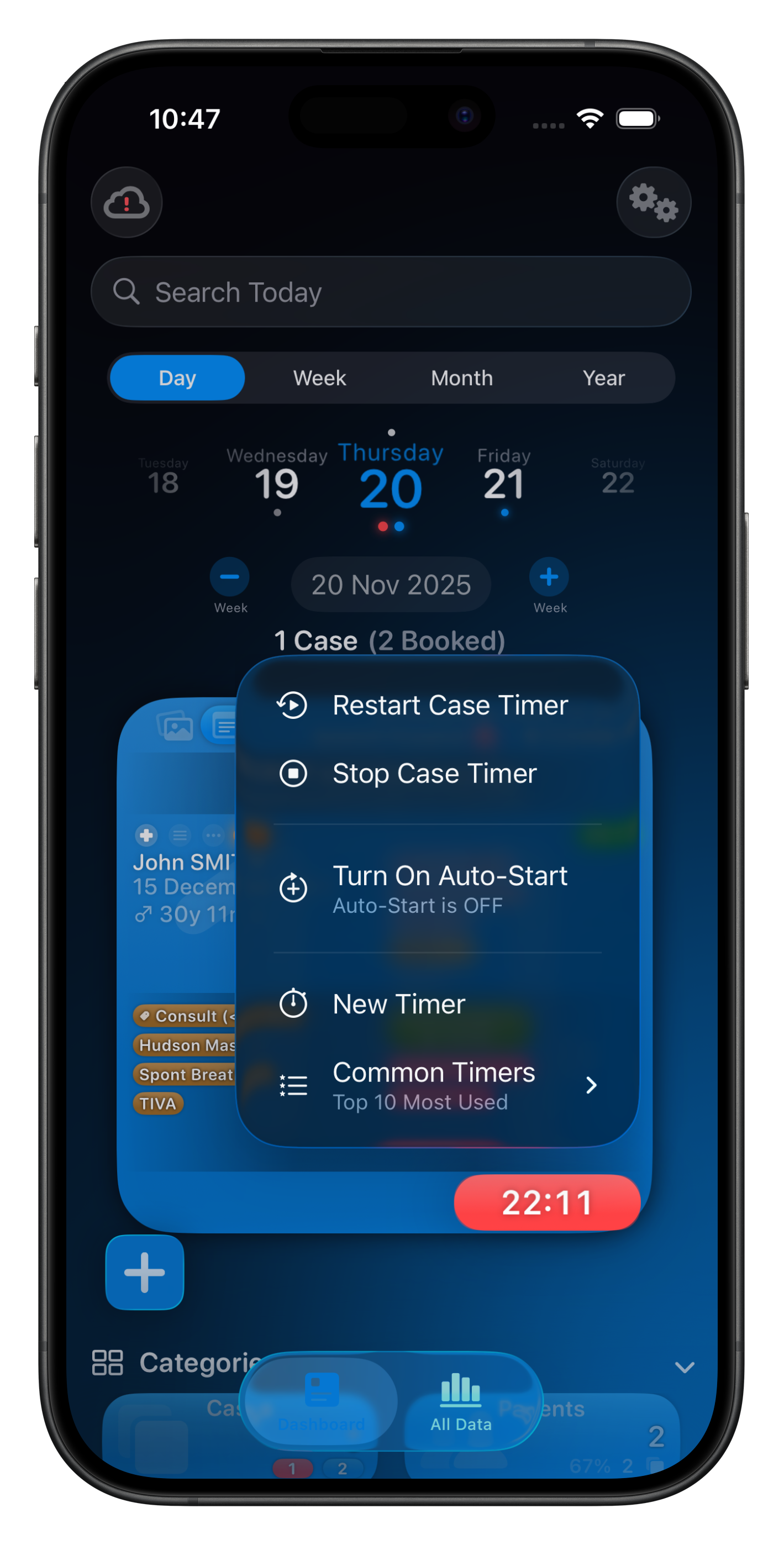
Regardless of what the Case Timer Button shows, the context menu will bring up more options, further reducing the need to open the Case. Tapping the button will stop the timer if active. You can also add Custom Timers here!

The Location & Time section will show the map position of your Location (if set by you) and other relevant details
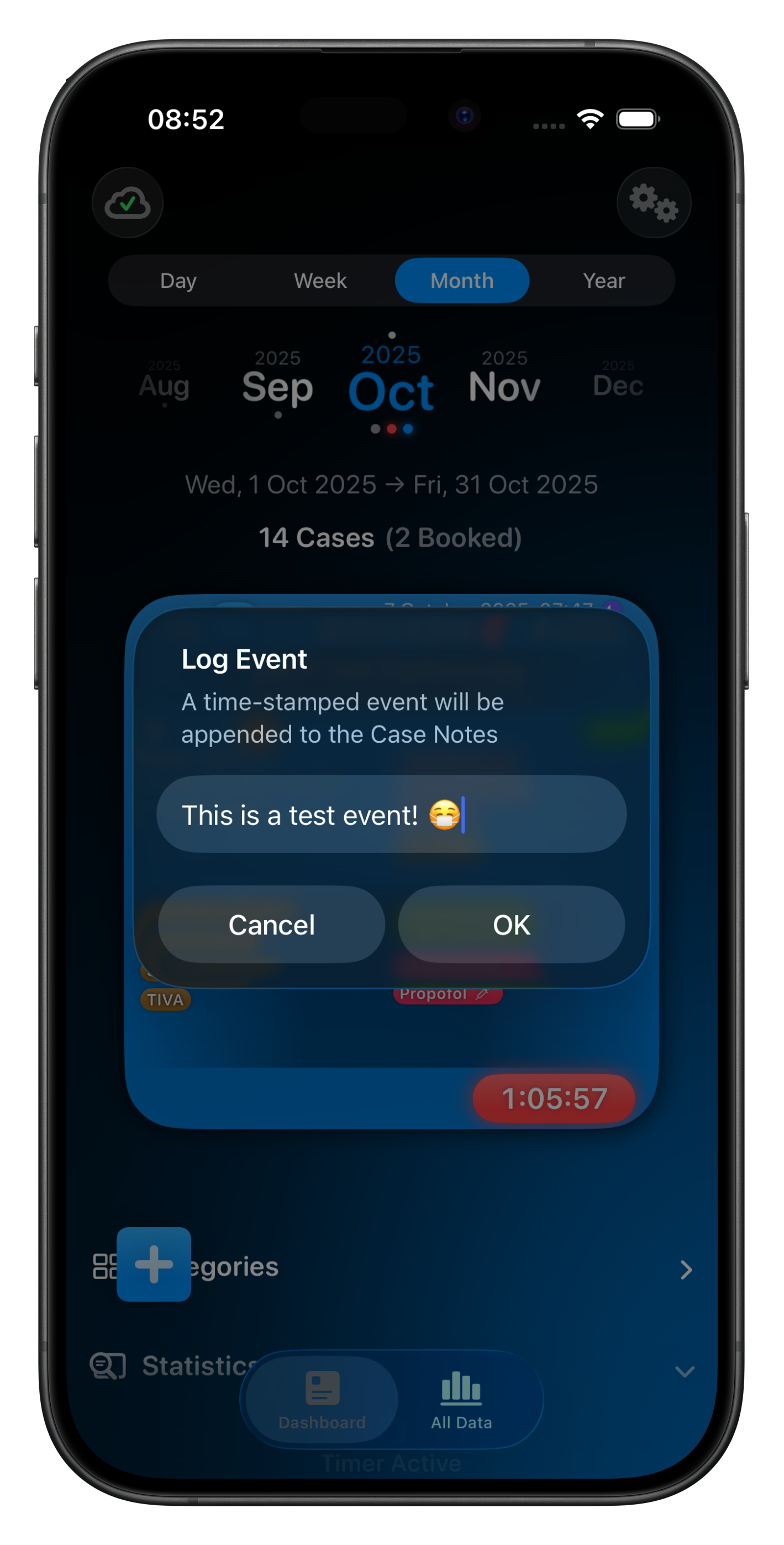
Tapping the Notes Button will allow you to quickly add a time-stamped event to the Case Notes.
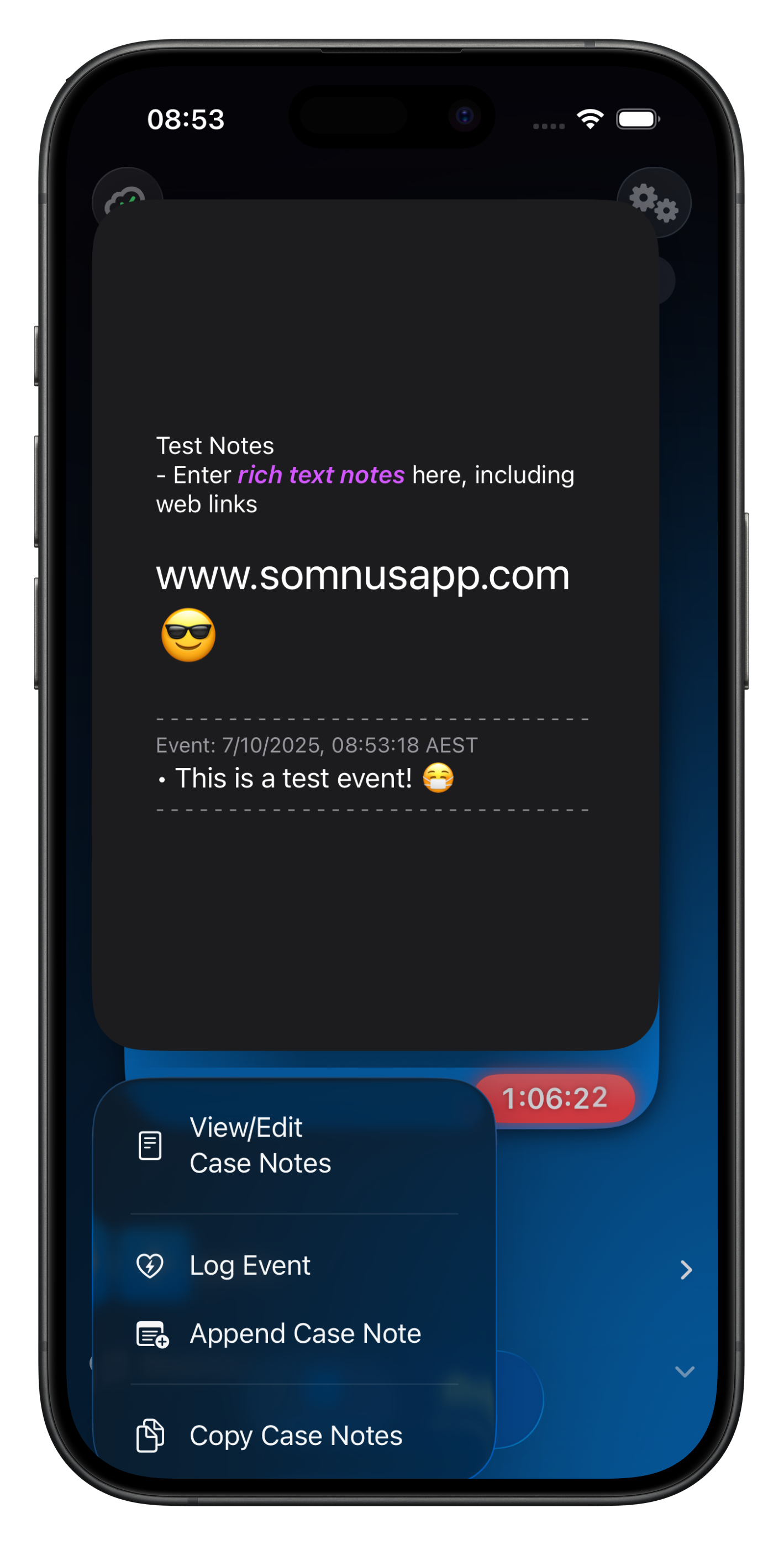
Long pressing on the Notes Button will show you the Case Notes and allow you to Log an Event, Edit the rich text notes, or Copy the text