Importing Data
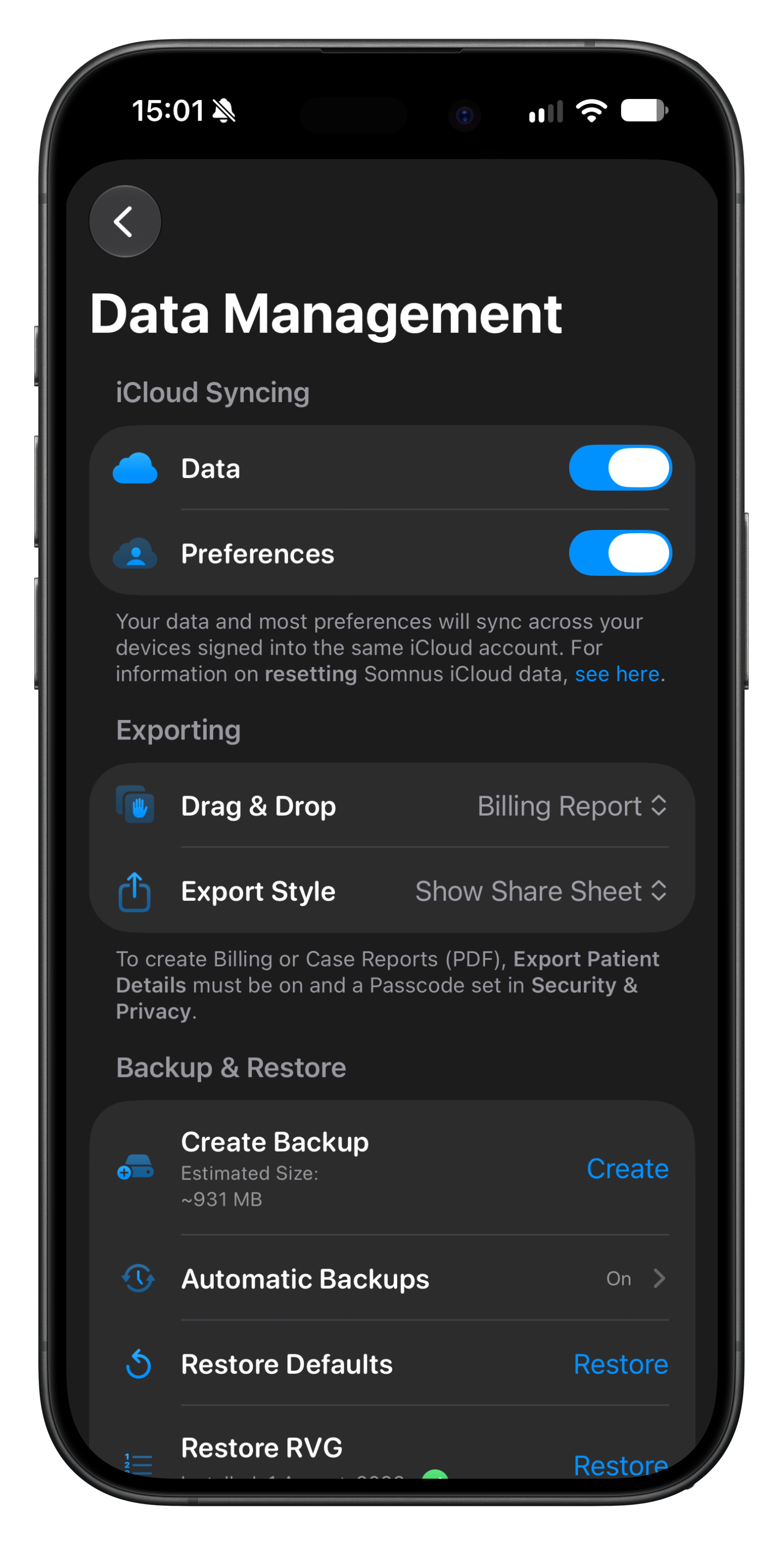
When you import a file, whether it be a Somnus Data file or a comma-separated-value (CSV) file, Somnus will analyse the incoming data and add any missing list items & patients to your local copy.
A progress indicator will show you how the import is progressing and afterwards, a summary of the import result is accessible with a tap of the Details button..
If you are using iCloud Syncing (see Settings - Data Management) these imported cases will appear on your other devices via iCloud within minutes.
Somnus cases have unique identifiers so duplicates will be skipped when importing a Somnus data file but newer versions of the same Case or Patient will be updated (based on last save date).
See below for importing any category items into Somnus, independent of cases, via CSV file imports.
Once imported you can edit, rename & merge your data as you wish.

Importing Cases via CSV
Provided the spreadsheet (CSV) is structured correctly, the data will be intelligently integrated into Somnus, allowing you to analyse, search & export your cases as if you created the cases within Somnus.
If you can get your existing case logs into a spreadsheet, you can get them into Somnus.
There are some minimum formatting requirements, but they aren't too complicated and if you need any help getting your data into Somnus, get in touch with me.
Click HERE to download a sample Apple Numbers Spreadsheet which you can use to export to CSV
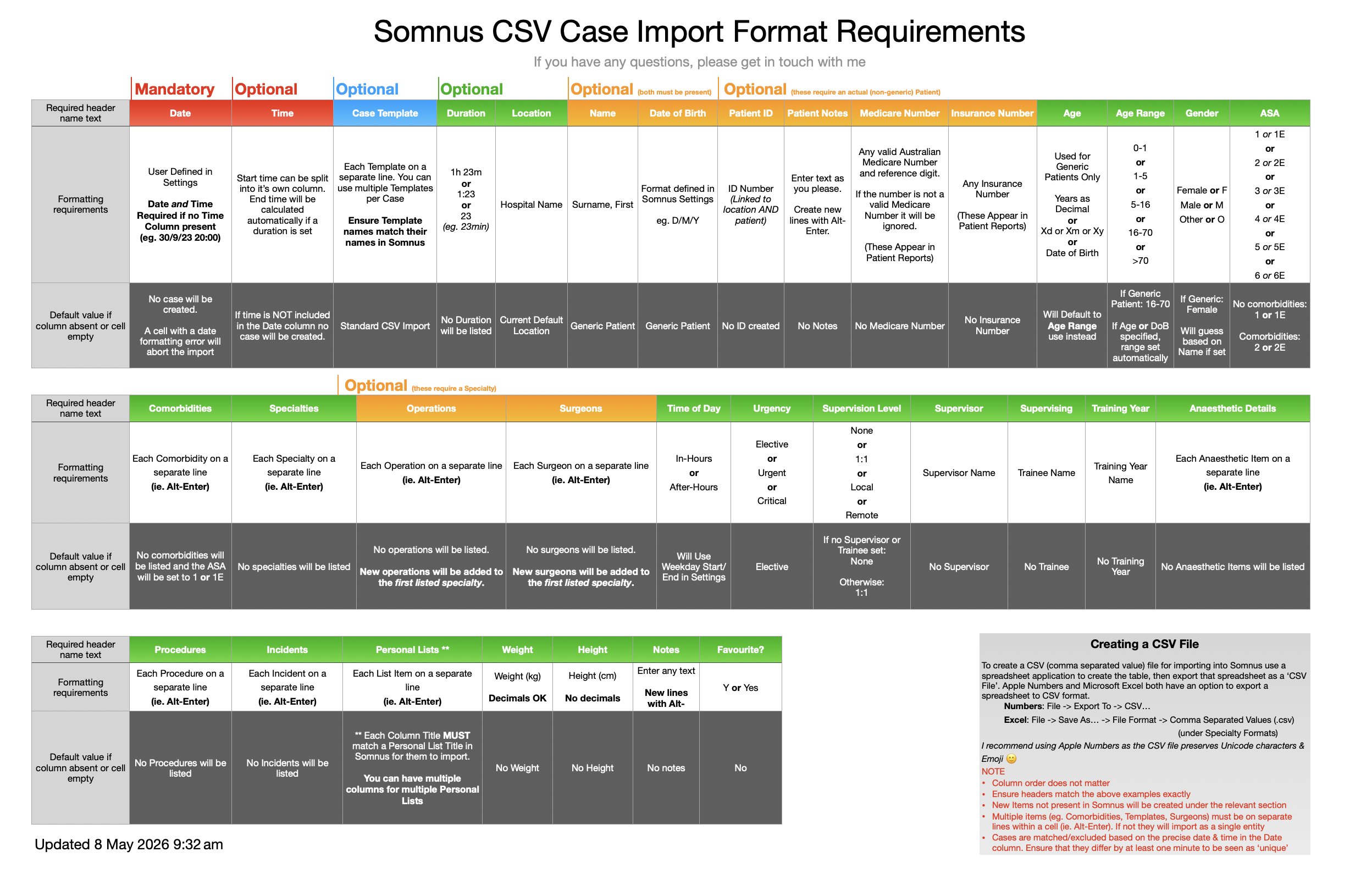
Download this PDF for more information
You can import any category item into Somnus via a CSV file, with the exception of Photos/Images, Templates & Searches.
If an item with the same name exists when importing it will be skipped unless other elements differ, in which case it will be updated depending on the item. For example:
If Notes are blank in Somnus, but the import file contains notes, the item will have notes added
If a Specialty exists, but there are new Operations listed, they will be added
If an Item Number exists but the details differ, they will be updated, and so on…
The PDF file to the right shows how to structure your CSV file for importing non-Case data into Somnus as well as highlighting what happens if an existing item is found but the data differs in your CSV file.
Importing Other Data Types via CSV
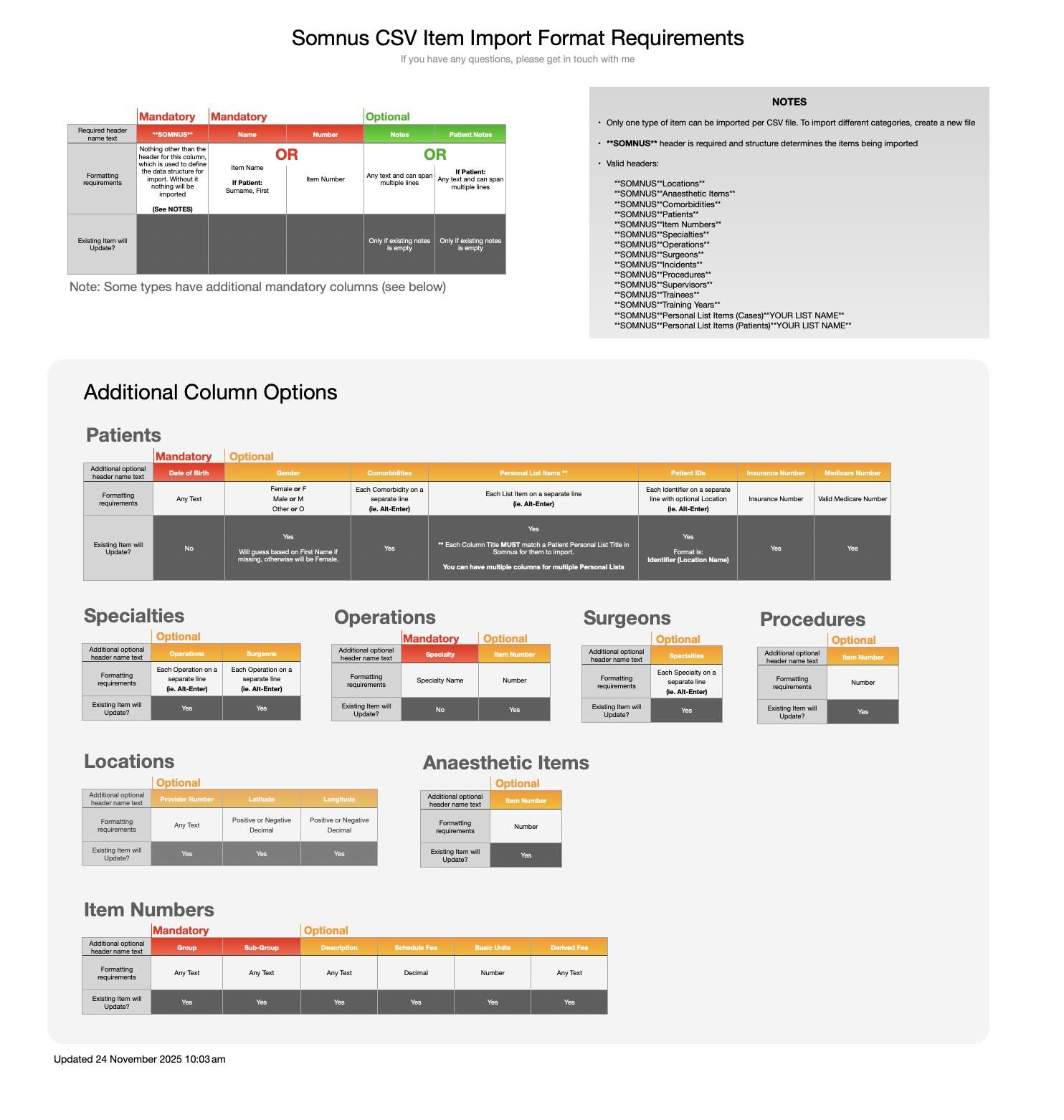
Download this PDF for more information
🔥 When building a fuller database with your own defaults via CSV, consider the order in which you build your lists.
For example: Operations.
Add Item Numbers first, then Operations with a Speciality & Item Number listed.
Doing it in this order will link the previously imported detailed Item Numbers to the Operations when importing.
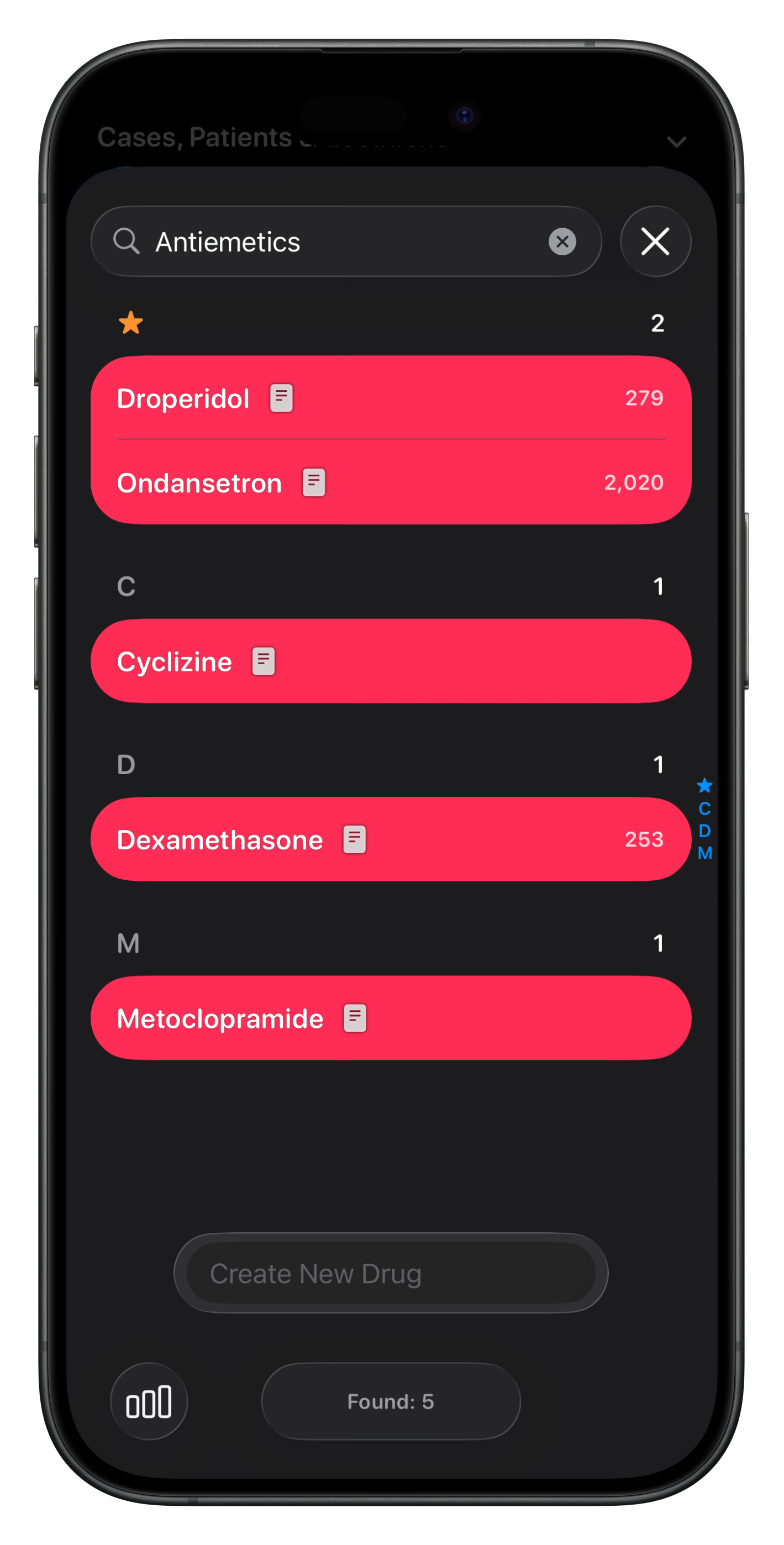
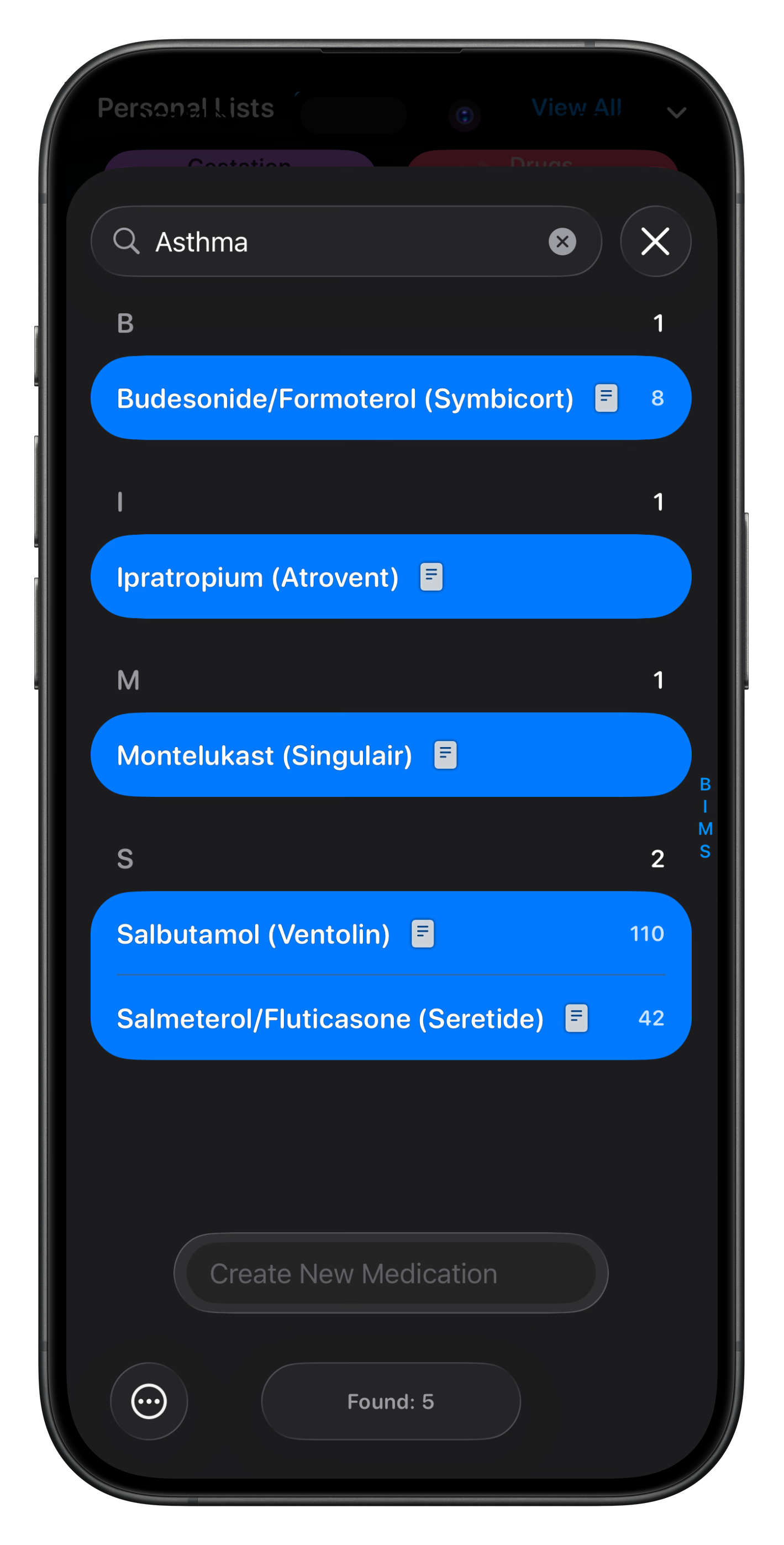
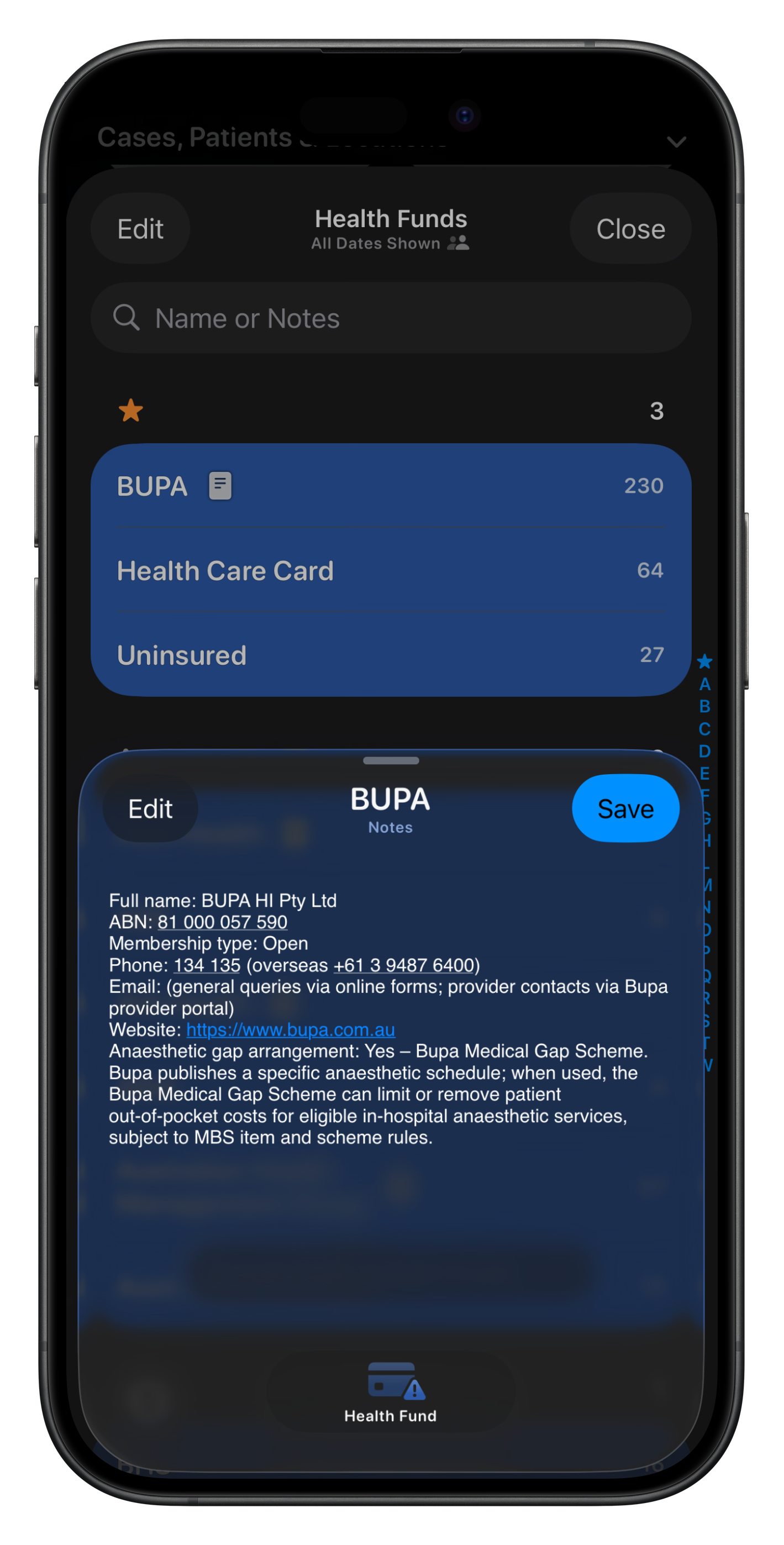
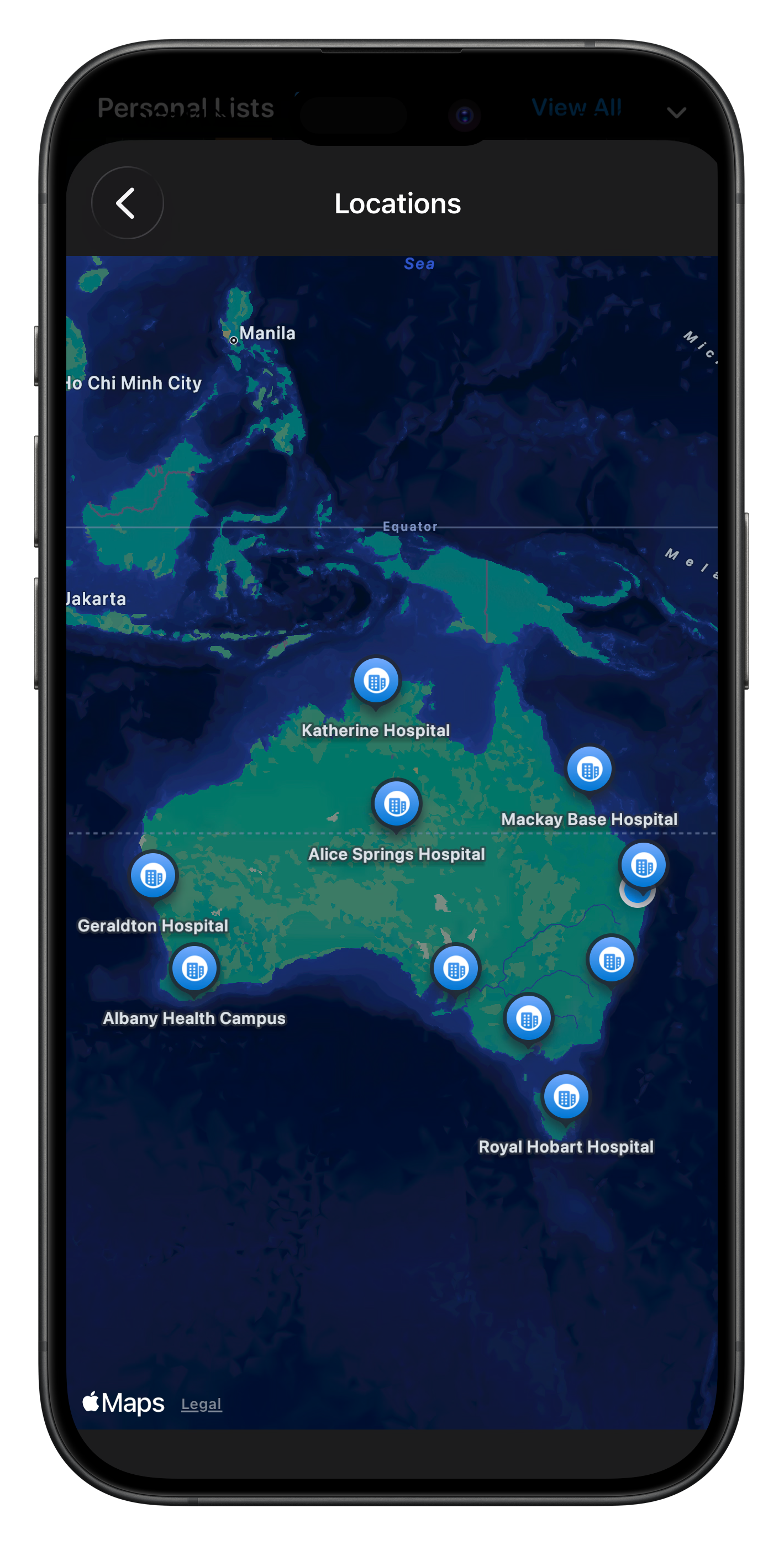
Here are some sample CSV files which you can import into Somnus. Notes fields have added data to help with quick filtering (ie. search for a drug class or indication).
Note: These are not meant to be comprehensive, but serve as examples. #INSPO
Common Theatre Drugs (including class & indications)
Common Patient Medications (including generic name, class & indications)
Australian Private Health Funds (including contact & anaesthesia billing details)
~50 Large Australian Hospitals (including address, contact & GPS location details)
Newly created Personal Lists will be assigned a random colour & icon. You can change these via the context menu on their respective Summary Cards.
🔥 Consider using AI LLMs to generate the lists you need. The examples above were generated with the help of an AI LLM and some prompting, particularly with populating complex Notes fields.
The special **SOMNUS** header/column was added afterwards in Apple Numbers before exporting to CSV.